
Understand usage delays and forecasts
Know why recent usage may be missing and how to interpret the cycle forecast.
Before you start
- A service with usage activity
Portal usage is informational and may be delayed. Do not use it as the only control for critical spend or safety decisions.
Check the imported-through date
The graph states the latest day included. Usage after that date may not have arrived yet.
Use the highlighted imported-through date on the Usage & activity screen. Confirm the surrounding service or account details match before you continue.
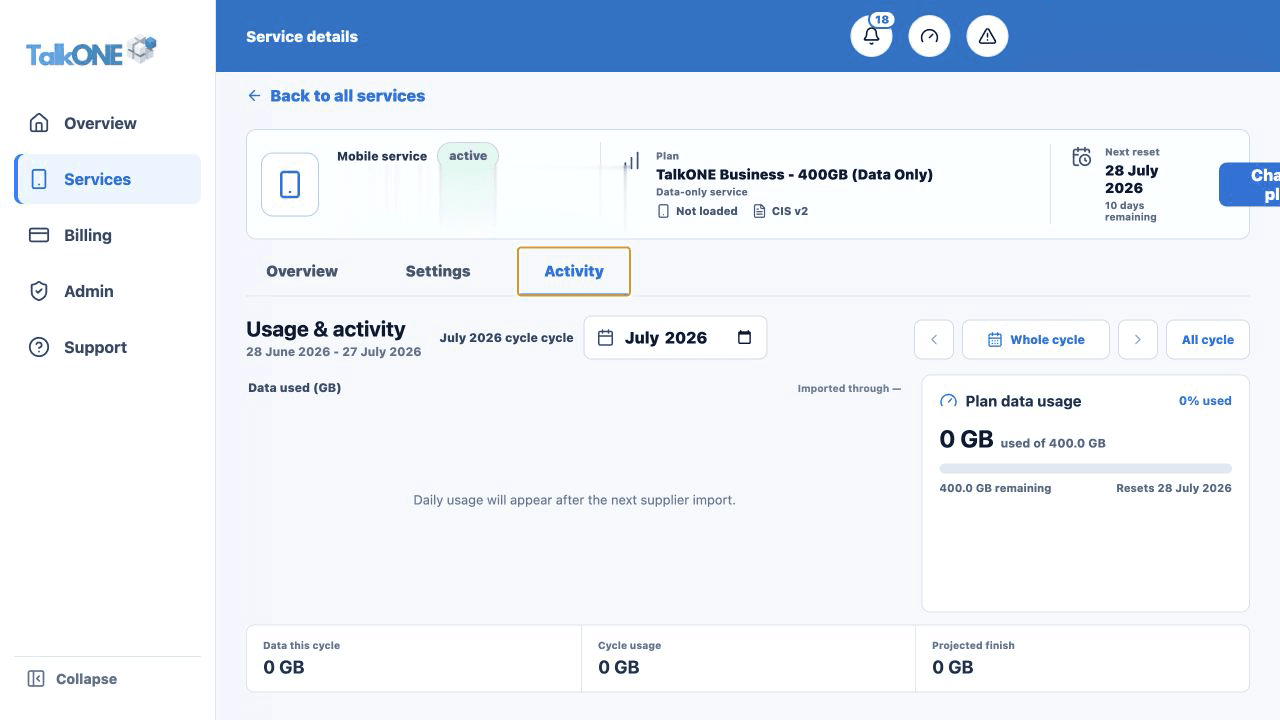
Read the forecast as an estimate
The forecast projects the current pattern across the rest of the billing cycle. It changes as more data arrives.
Use the highlighted plan data usage summary on the Usage & activity screen. Confirm the surrounding service or account details match before you continue.
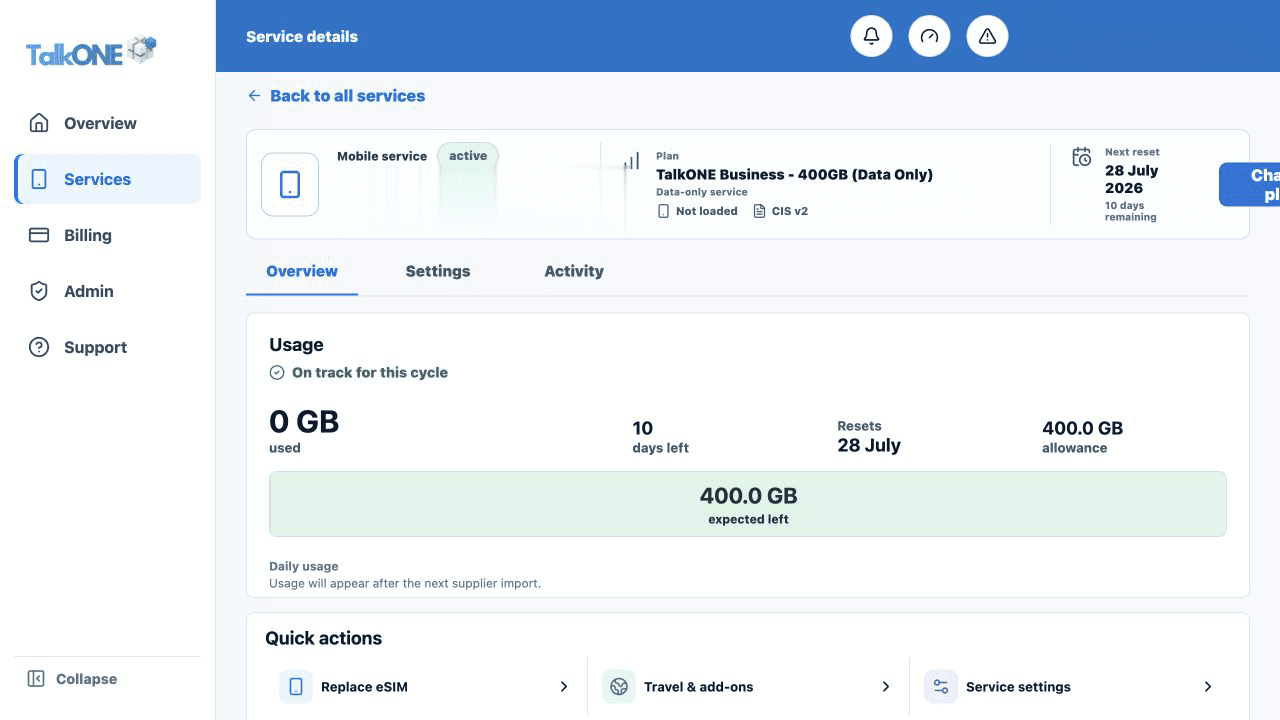
Watch the status, not one bar
Use the allowance, days remaining and status together before deciding action is needed.
Use the highlighted usage summary on the Service overview screen. Confirm the surrounding service or account details match before you continue.
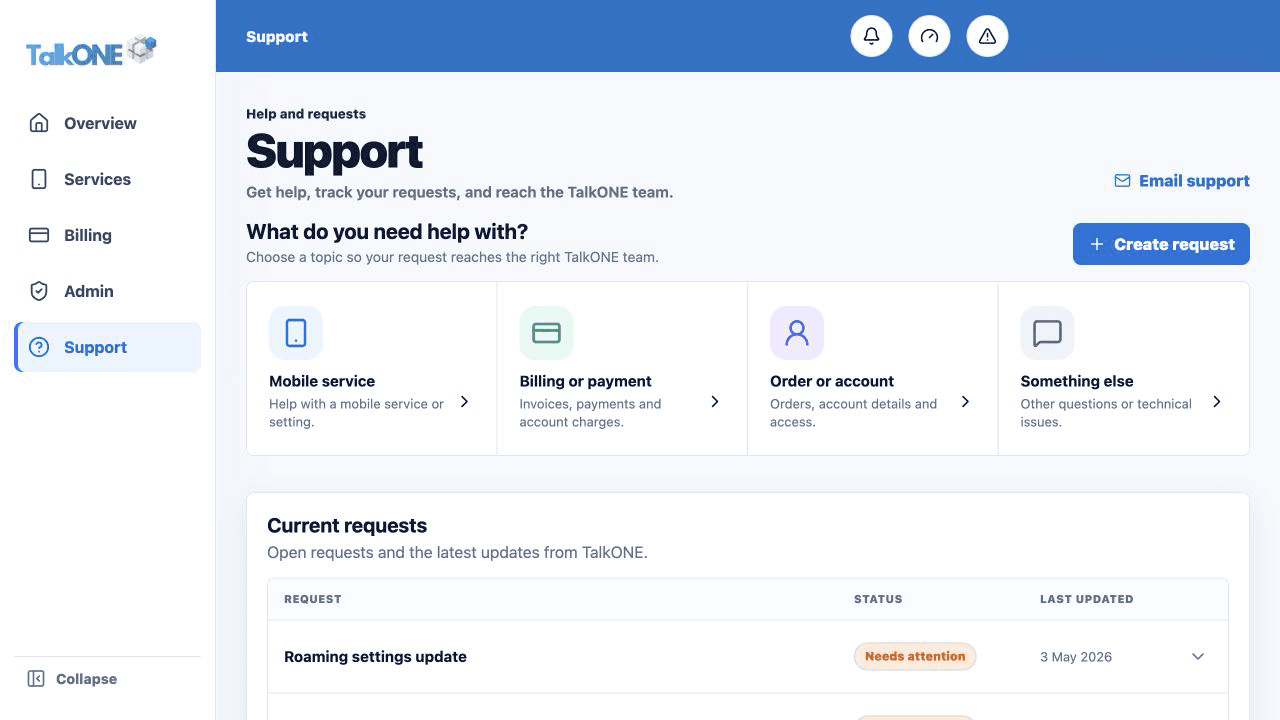
Recheck before escalating
Refresh later or check the next day. Submit a support request if several expected days remain absent.
Use the highlighted Create request on the Support screen. Confirm the surrounding service or account details match before you continue.
Check your work
You can distinguish imported usage, forecast usage and expected remaining data.