
Install and activate an eSIM
Use the generated QR code or manual details to install your TalkONE eSIM.
Before you start
- An eSIM-compatible phone
- Wi-Fi access
- The phone available during installation
Most eSIM activation codes can only be installed once. Do not delete an active eSIM unless you are replacing it.
Open the eSIM setup
Open the service and select the eSIM action. Choose iOS or Android to see the correct short instructions.
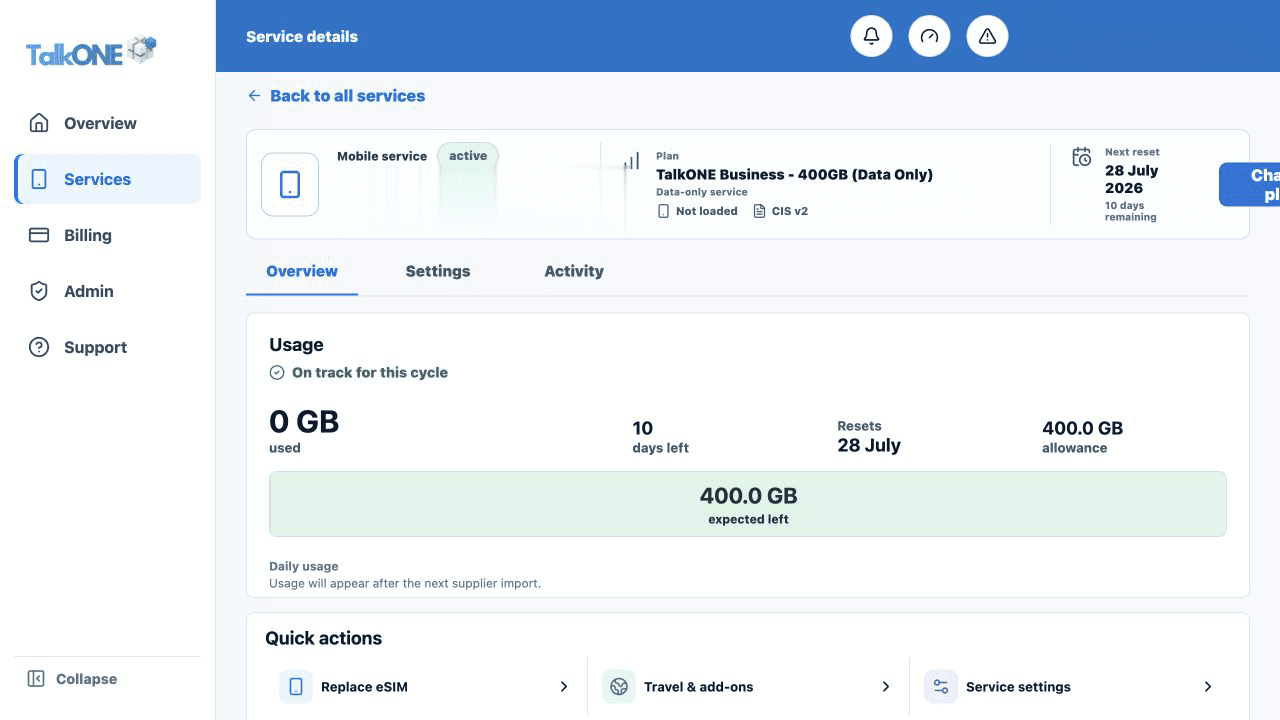
Use the highlighted Replace eSIM quick action on the Service overview screen. Confirm the surrounding service or account details match before you continue.
Prepare the phone
Connect the phone to Wi-Fi. Keep this page open on another screen so the phone camera can scan the QR code.
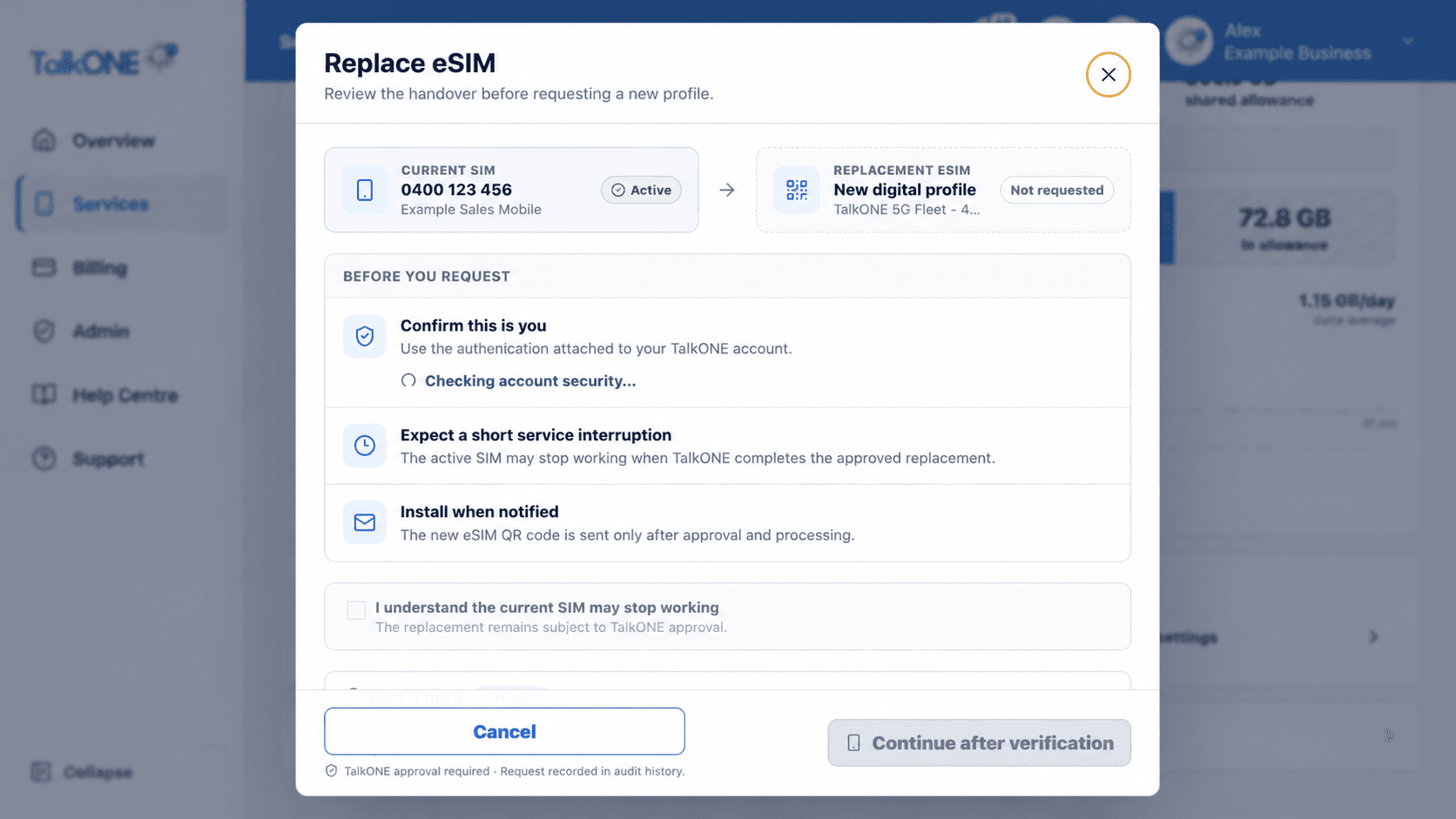
Use the highlighted replacement safety checks on the Replace eSIM screen. Confirm the surrounding service or account details match before you continue.
Install the mobile plan
Use Add eSIM or Add mobile plan in the phone settings and scan the TalkONE QR code. If scanning is unavailable, use the displayed activation details.
Use the highlighted current and replacement eSIM on the Replace eSIM screen. Confirm the surrounding service or account details match before you continue.
Label and test the service
Give the plan a recognisable label, enable it for calls and data as required, then place a test call and turn Wi-Fi off to test mobile data.
Use the highlighted Continue after verification on the Replace eSIM screen. Confirm the surrounding service or account details match before you continue.
Check your work
The phone shows mobile signal and the service can place a call or load a webpage without Wi-Fi.