
Transfer an existing mobile number
Move a mobile number to TalkONE while keeping the number.
Before you start
- The active mobile number
- Current provider account details
- Access to the current SIM for verification
Do not cancel the old service yourself before the number transfer completes.
Start a mobile service order
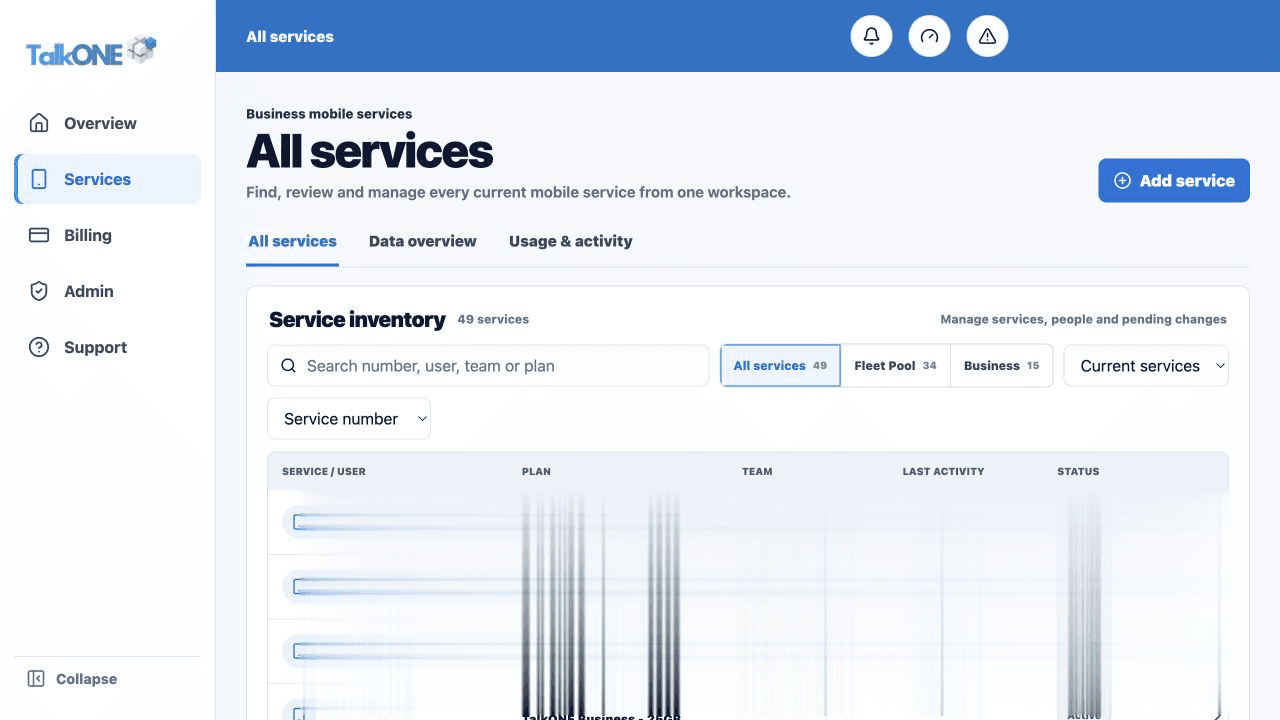
Choose Add mobile service and select Transfer an existing number when asked how the service should be created.
Use the highlighted Add service on the All services screen. Confirm the surrounding service or account details match before you continue.
Enter the current account details
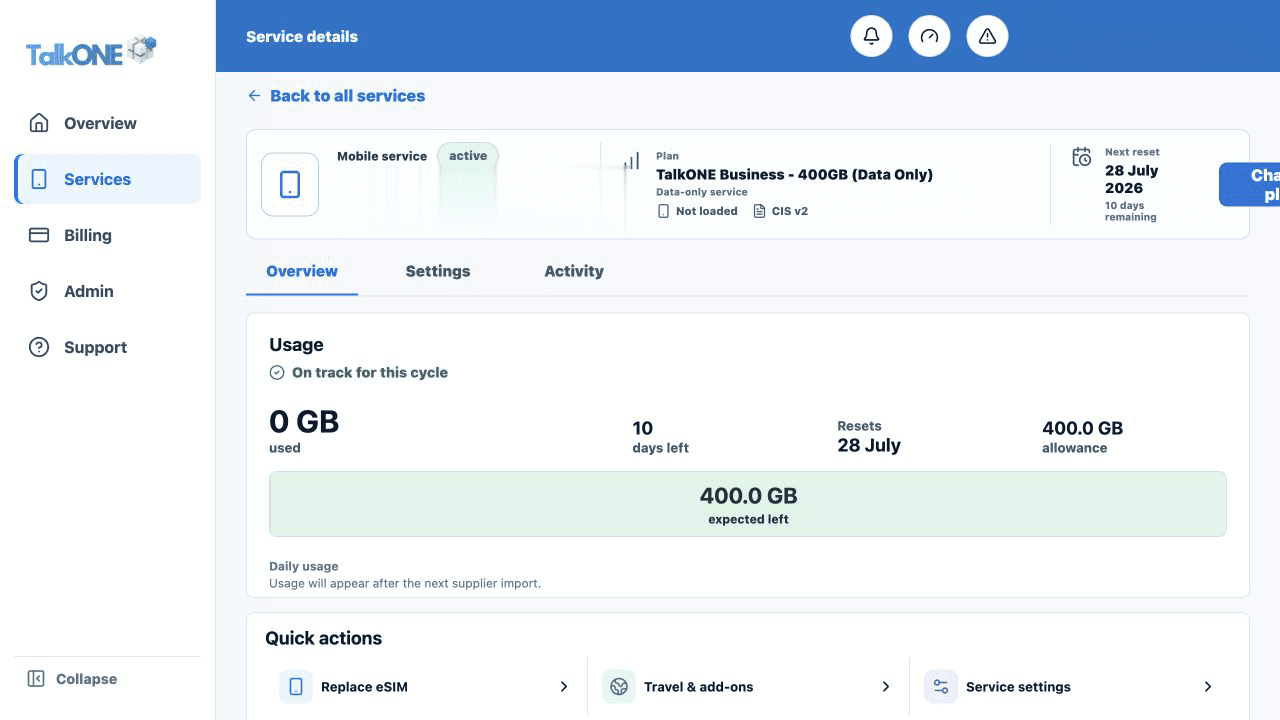
Copy the account name, date of birth or account number exactly as held by the losing provider.
Use the highlighted service number, user and plan on the Service overview screen. Confirm the surrounding service or account details match before you continue.
Complete number verification
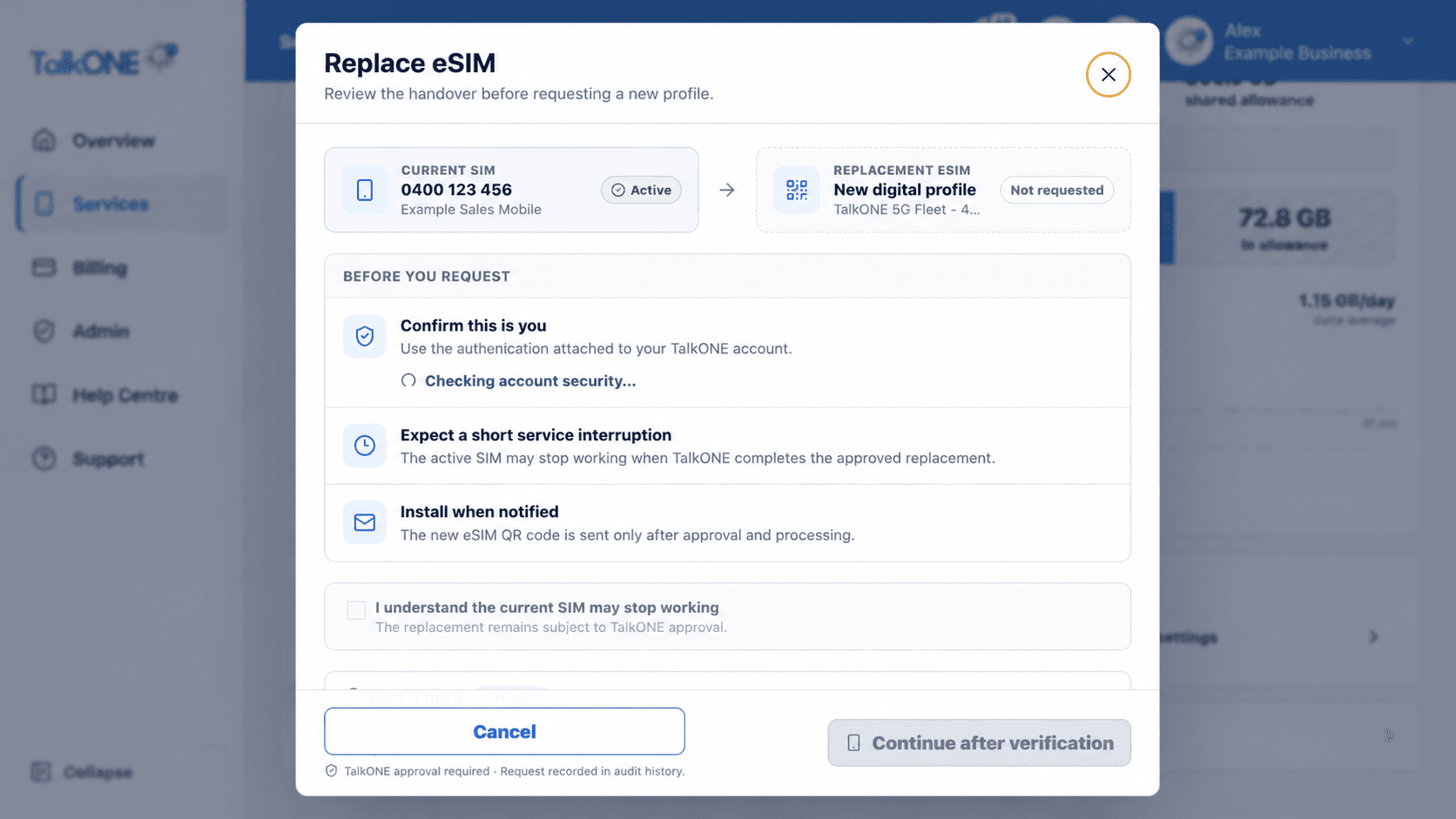
Enter the verification code sent to the number being transferred. Keep the old SIM active until the transfer completes.
Use the highlighted service interruption confirmation on the Replace eSIM screen. Confirm the surrounding service or account details match before you continue.
Review and submit
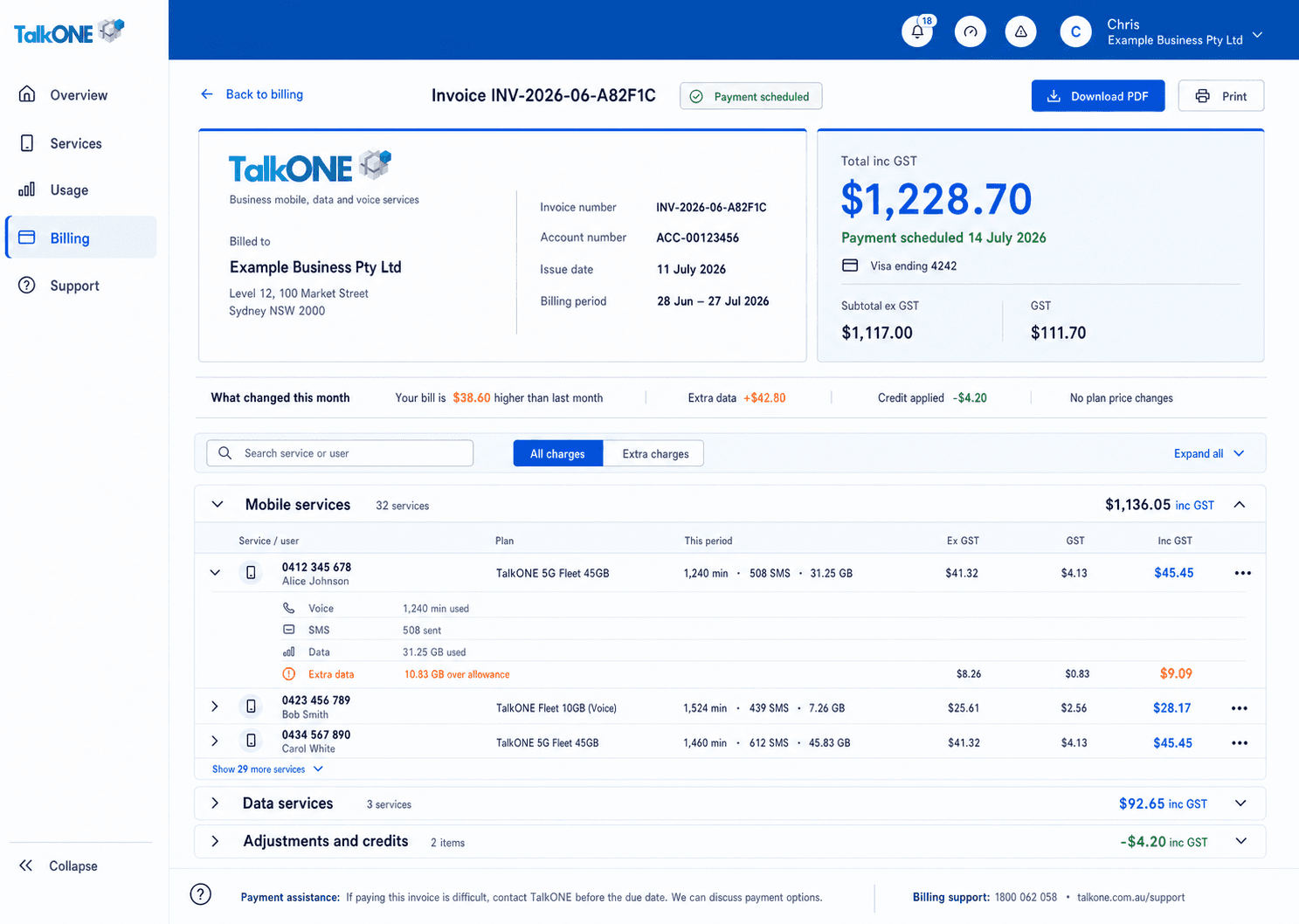
Check the number, plan, SIM type and IPND record, then submit. Track progress in Support and your email.
Use the highlighted invoice and amount summary on the Invoice screen. Confirm the surrounding service or account details match before you continue.
Check your work
The request status is visible and the transferred number is listed in the order summary.