
Troubleshoot eSIM installation
Resolve common QR, activation and no-service problems safely.
Before you start
- Wi-Fi access
- An eSIM-compatible unlocked phone
- The TalkONE eSIM details
Deleting an eSIM does not cancel the service and may require a replacement activation.
Confirm device support
Check the phone supports eSIM, is not carrier-locked and is running a current operating system.
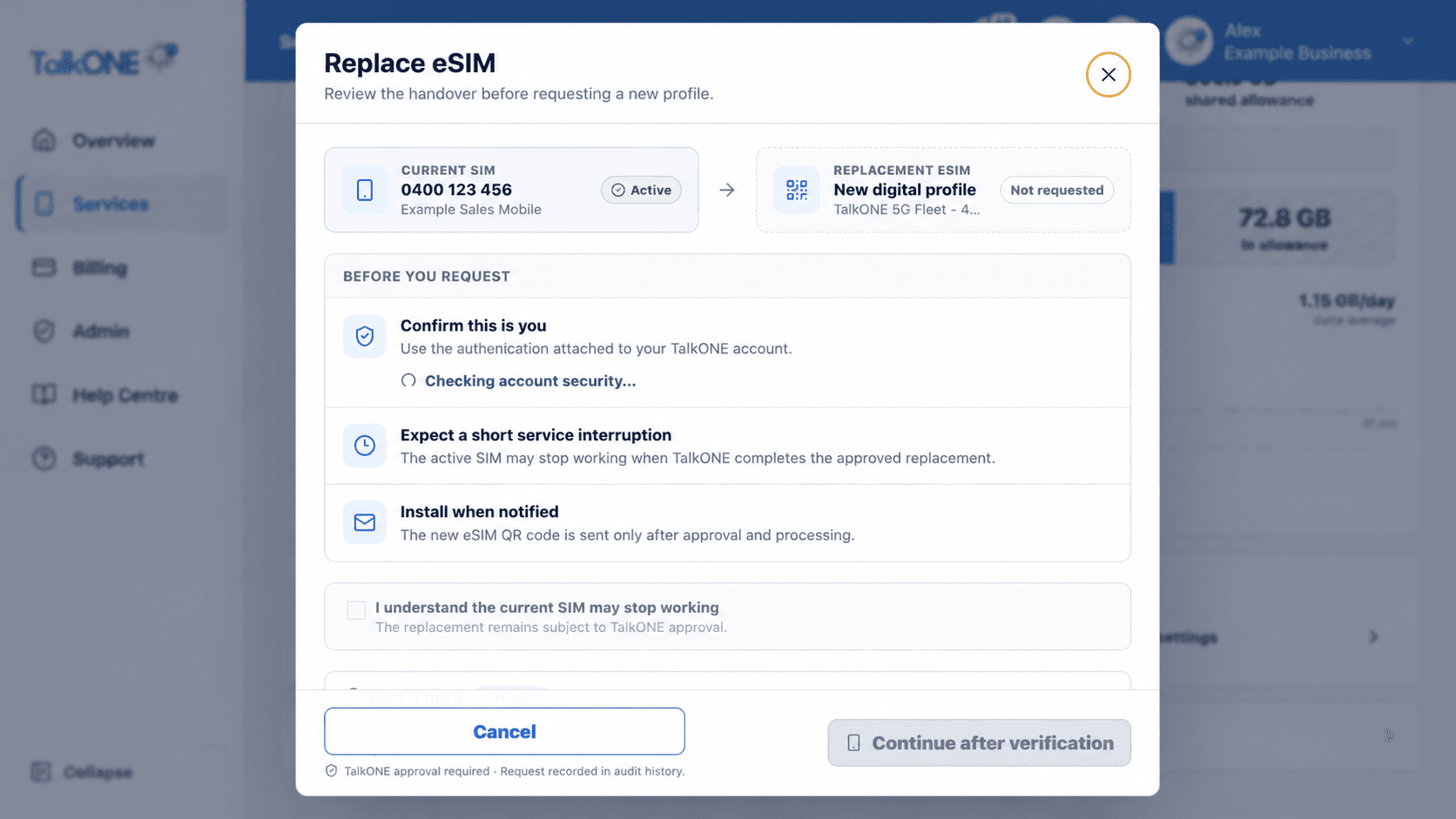
Use the highlighted current and replacement eSIM on the Replace eSIM screen. Confirm the surrounding service or account details match before you continue.
Check the QR code
Use the newest eSIM details and scan from the phone's Add eSIM screen. Do not scan a screenshot on the same phone.
Use the highlighted replacement safety checks on the Replace eSIM screen. Confirm the surrounding service or account details match before you continue.
Check the mobile plan state
Confirm the TalkONE line is switched on and selected for the intended calls or mobile data.
Use the highlighted service interruption confirmation on the Replace eSIM screen. Confirm the surrounding service or account details match before you continue.
Restart and test
Restart the phone, disable Wi-Fi and test a webpage. Then make a call if the service includes voice.
Use the highlighted Continue after verification on the Replace eSIM screen. Confirm the surrounding service or account details match before you continue.
Request help without deleting
If activation still fails, submit the exact on-screen error. Do not delete an installed eSIM unless TalkONE confirms replacement is required.
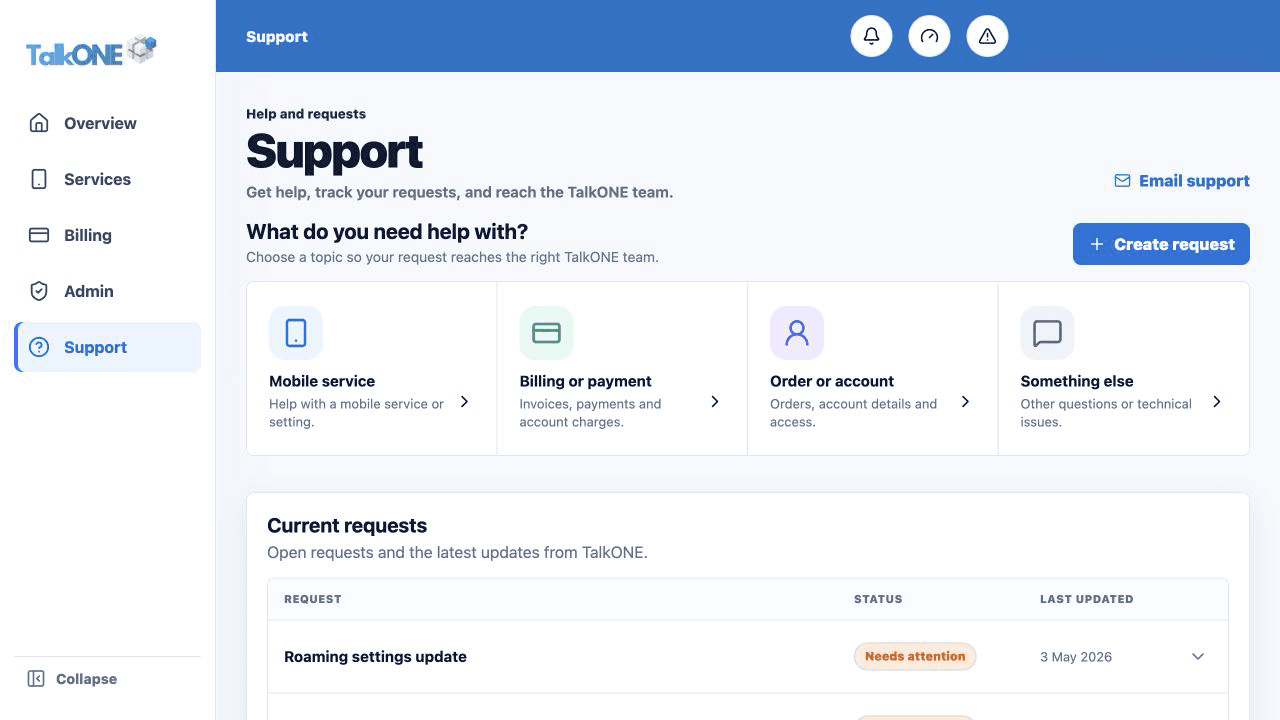
Use the highlighted Create request on the Support screen. Confirm the surrounding service or account details match before you continue.
Check your work
The TalkONE line shows signal and completes the relevant call/data test.