
Understand a Fleet data pool
See how pooled services share data and which services are using the allowance.
Before you start
- A Fleet or pooled-data account
Open the pool view
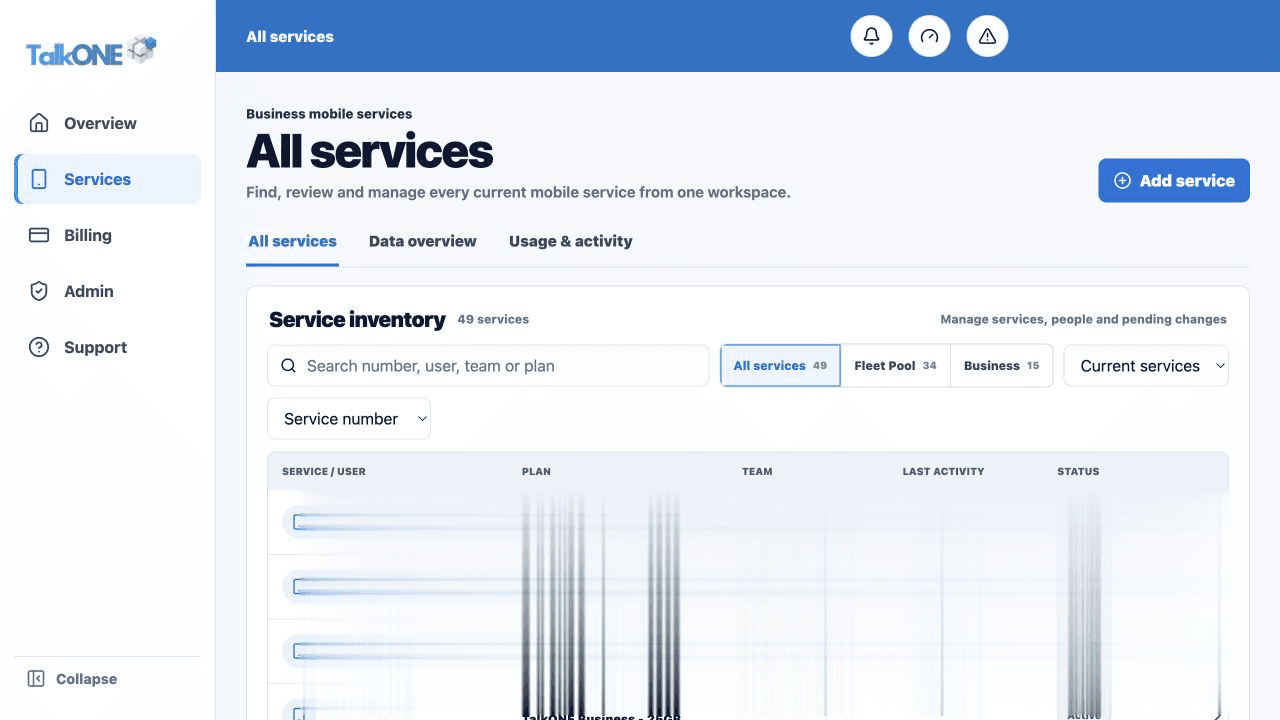
Use Services and choose the pool or Data view available to your account.
Use the highlighted service view tabs on the All services screen. Confirm the surrounding service or account details match before you continue.
Read the pool total
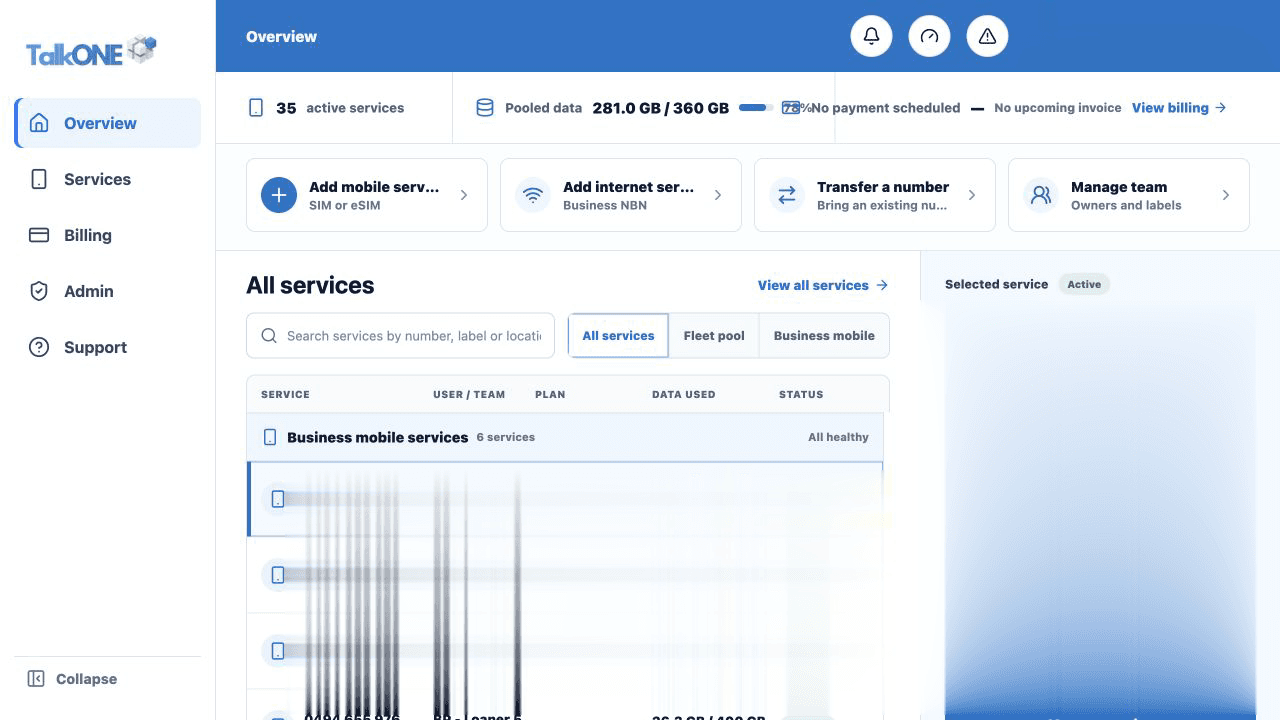
The pool summary shows total included data, used data and remaining data for the selected cycle.
Use the highlighted account summary on the Overview screen. Confirm the surrounding service or account details match before you continue.
Compare members
Review each member service by contribution. High usage is context—not automatically a fault.
Use the highlighted service inventory row on the All services screen. Confirm the surrounding service or account details match before you continue.
Open a service
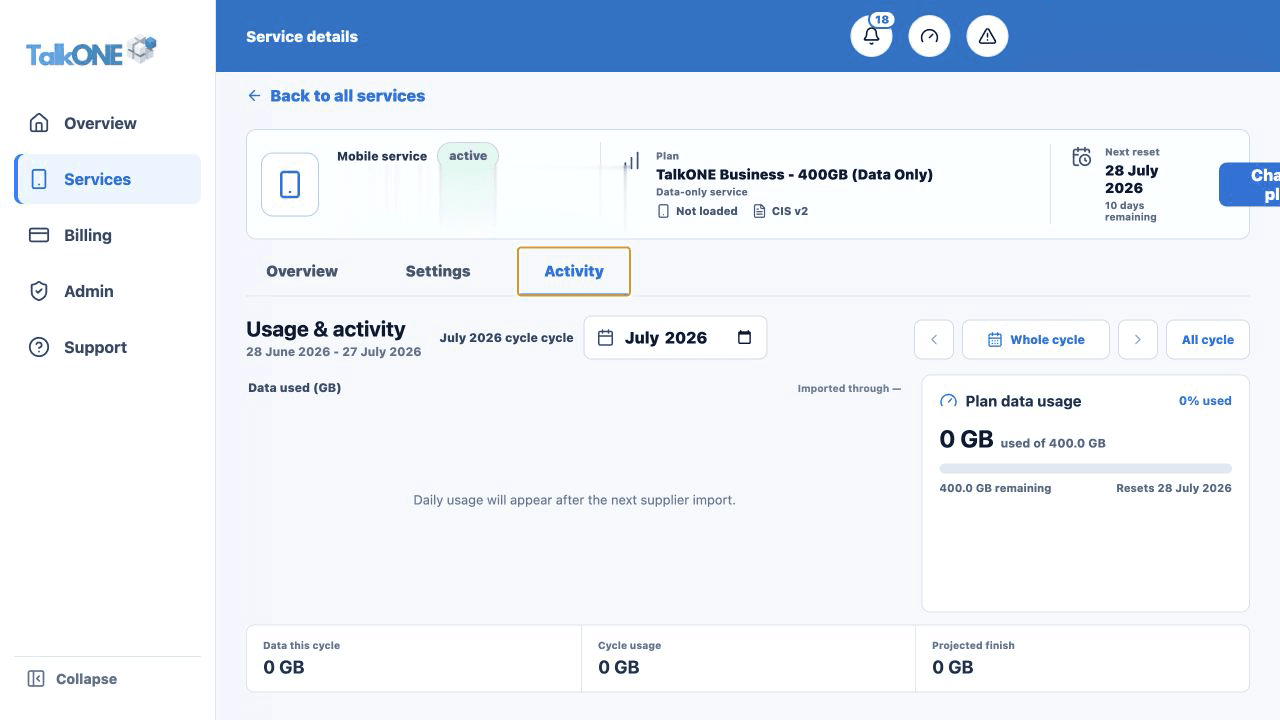
Select a member to view its day-by-day graph and activity without losing the pool context.
Use the highlighted daily usage graph on the Usage & activity screen. Confirm the surrounding service or account details match before you continue.
Check your work
The sum and member data all refer to the same pool and cycle.