
Edit a service name, user or image
Make a service easier to identify with a clear name, assigned user, department and image.
Before you start
- Permission to manage the service
Open Service settings
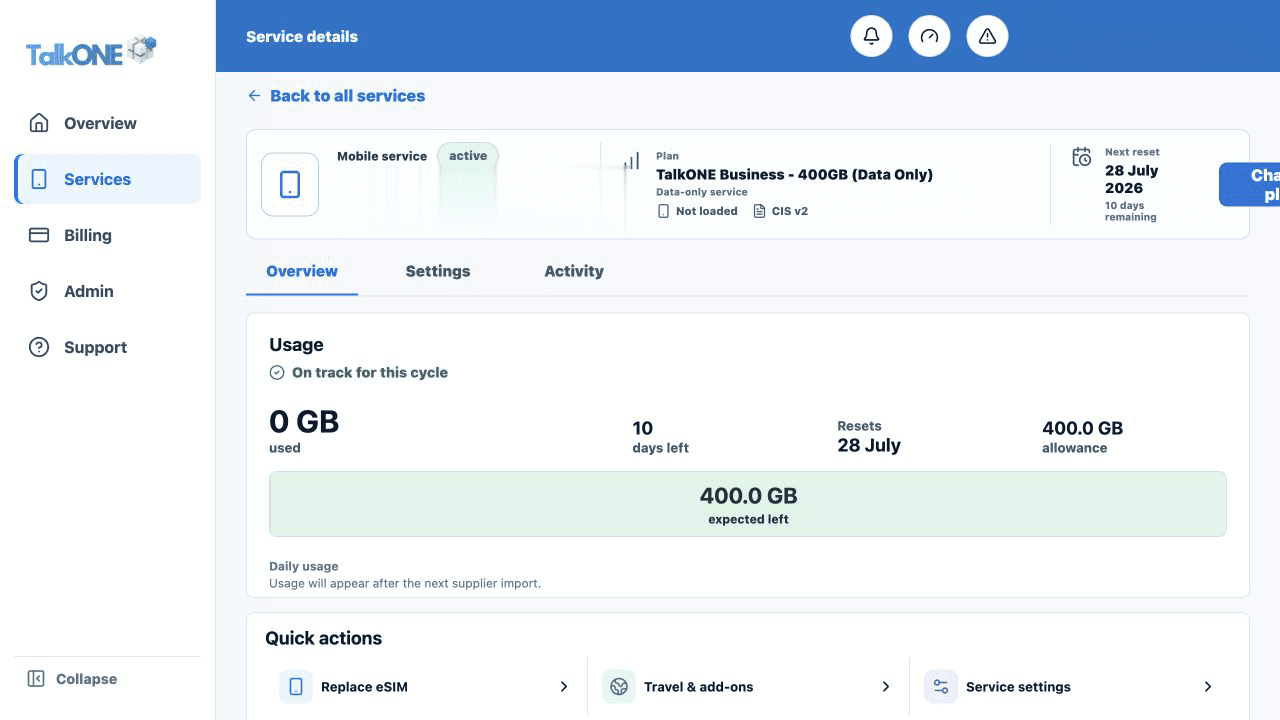
Select the service, then open Settings. The Service profile is at the top.
Use the highlighted Overview, Settings and Activity tabs on the Service overview screen. Confirm the surrounding service or account details match before you continue.
Edit the service fields
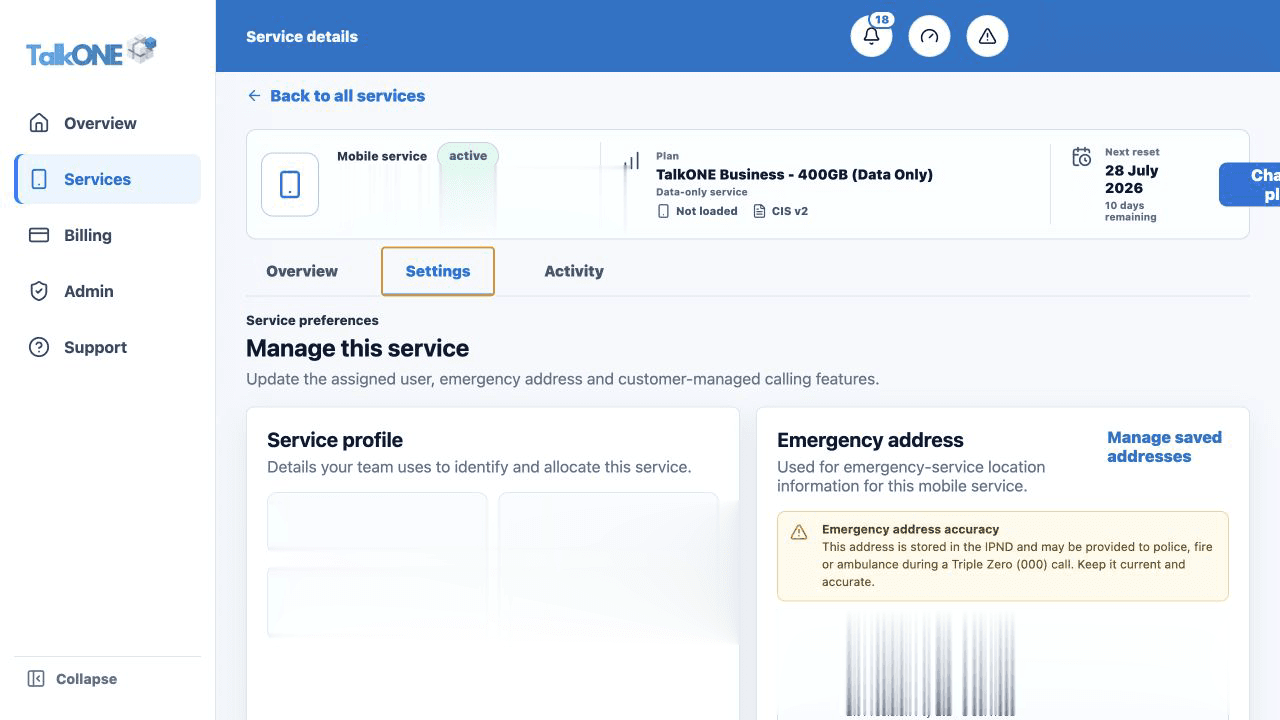
Click an editable value and update the service name, assigned user or free-text department.
Use the highlighted Service profile on the Service settings screen. Confirm the surrounding service or account details match before you continue.
Choose an image
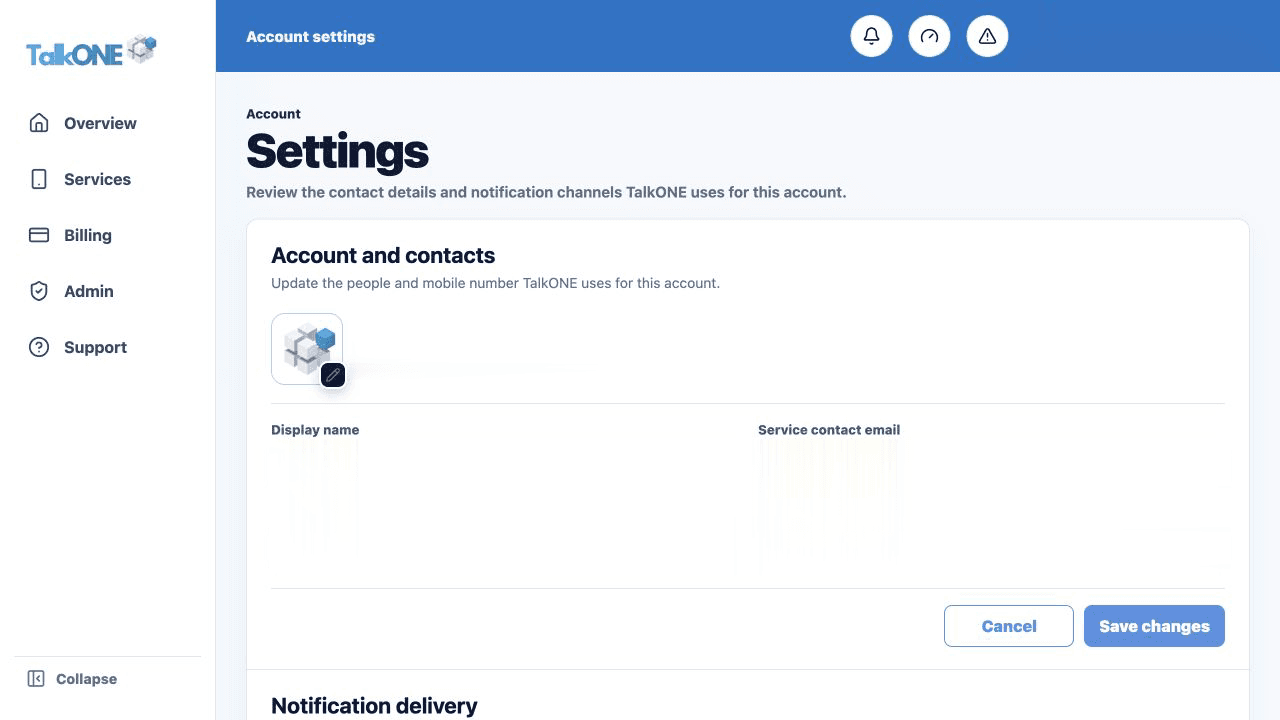
Click the current image. Choose one of the common icons and a colour, search the symbol library, or upload a small image.
Use the highlighted account image on the Account settings screen. Confirm the surrounding service or account details match before you continue.
Save and check
Save the changes and return to Services. The same name and image should appear in the list and service detail.
Use the highlighted Save changes on the Account settings screen. Confirm the surrounding service or account details match before you continue.
Check your work
The service list and detail header show the new profile consistently.