
Update account and contact details
Keep the business, service and billing contacts accurate.
Before you start
- Account-owner permission
- Current contact details
Open Settings
Choose the account menu, then Settings. Account contacts appear together in a compact summary.
Use the highlighted Settings heading on the Account settings screen. Confirm the surrounding service or account details match before you continue.
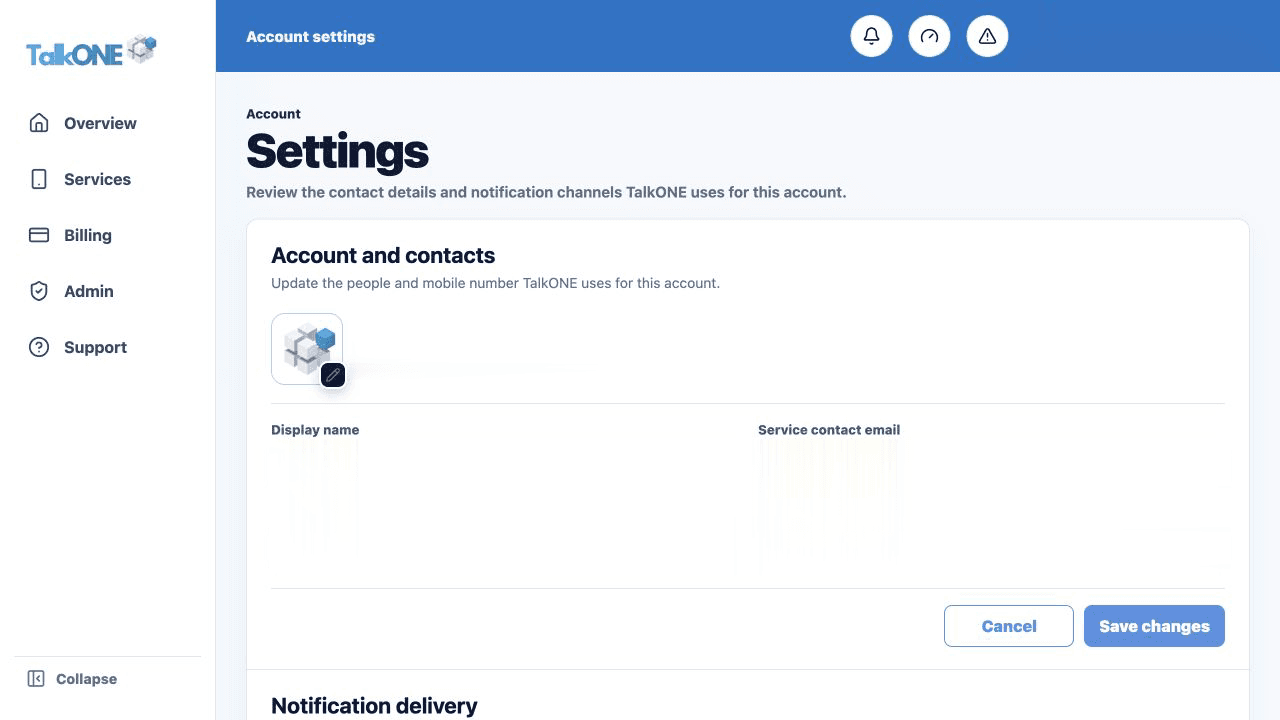
Choose Update account details
Edit the fields inline where available. Check business name, signed-in user, service contact, billing contact and mobile number.
Use the highlighted account and contact fields on the Account settings screen. Confirm the surrounding service or account details match before you continue.
Change the account image
Click the current account image to choose a business logo, personal image, icon or colour.
Use the highlighted account image on the Account settings screen. Confirm the surrounding service or account details match before you continue.
Save and verify
Save once, then check the Settings summary and sidebar account identity.
Use the highlighted Save changes on the Account settings screen. Confirm the surrounding service or account details match before you continue.
Check your work
The compact account summary shows the new details with consistent row padding.