
Add or update a payment method
Set up the payment method used for invoices and future account charges.
Before you start
- Billing or account-owner access
- The authorised payment account details
Do not send card or bank details in a support request or email.
Open Billing
Choose Billing in the sidebar and open Payment method or Account details.
Use the highlighted Billing page on the Billing screen. Confirm the surrounding service or account details match before you continue.
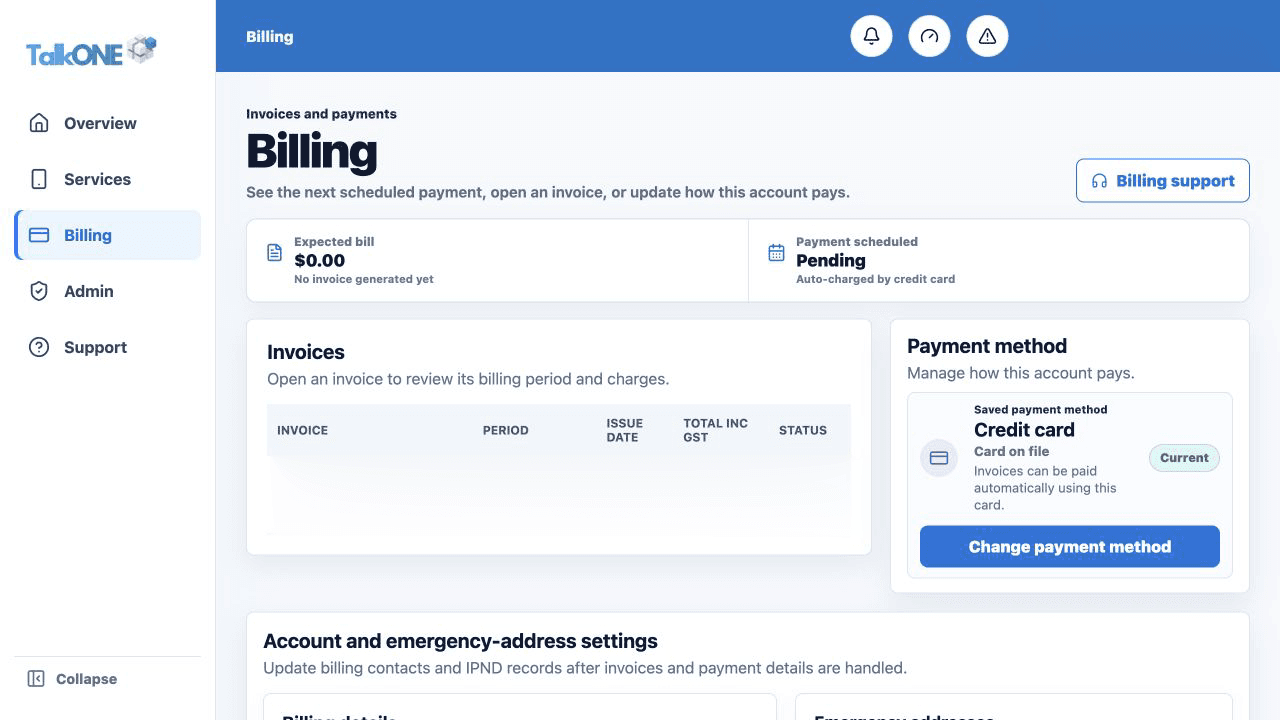
Start the secure setup
Choose Add or Update payment method. Payment details are collected through the displayed secure payment workflow.
Use the highlighted Payment method on the Billing screen. Confirm the surrounding service or account details match before you continue.
Check the account holder
Confirm the payment account belongs to the correct person or business and review any mandate wording.
Use the highlighted Payment method on the Billing screen. Confirm the surrounding service or account details match before you continue.
Confirm and return
Complete the provider confirmation, then return to Billing and check the masked payment summary.
Use the highlighted bill and payment status on the Billing screen. Confirm the surrounding service or account details match before you continue.
Check your work
Billing shows the new masked payment method and its ready/active status.