
Understand roles and permissions
Know what account owners, billing users and service users can see or change.
Before you start
- A TalkONE portal login
Check your role
Open the account menu in the sidebar. Your current role is shown with the account name.
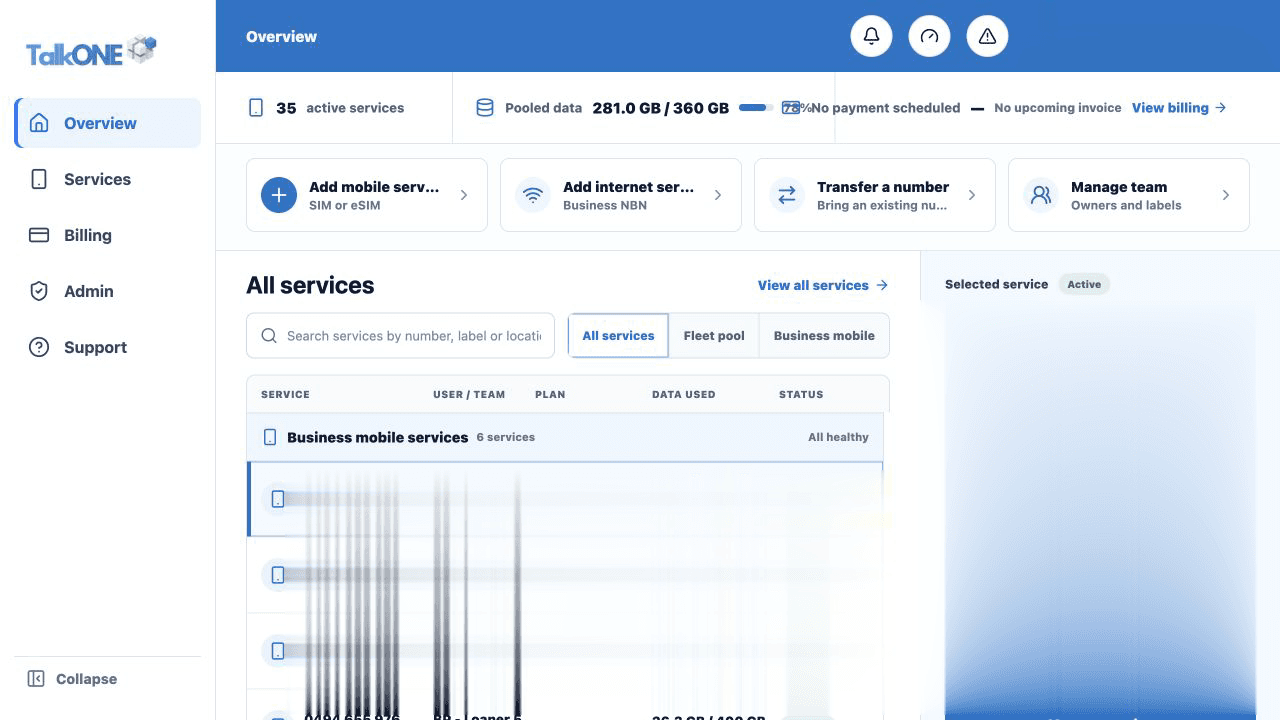
Use the highlighted account identity and service context on the Overview screen. Confirm the surrounding service or account details match before you continue.
Understand page access
Account managers can manage services and contacts. Billing access is limited to authorised users. Service-scoped users only see assigned services.
Use the highlighted main navigation on the Overview screen. Confirm the surrounding service or account details match before you continue.
Request a change
If a page or action is missing, ask your account owner or submit a support request. Include the user email and the access required.
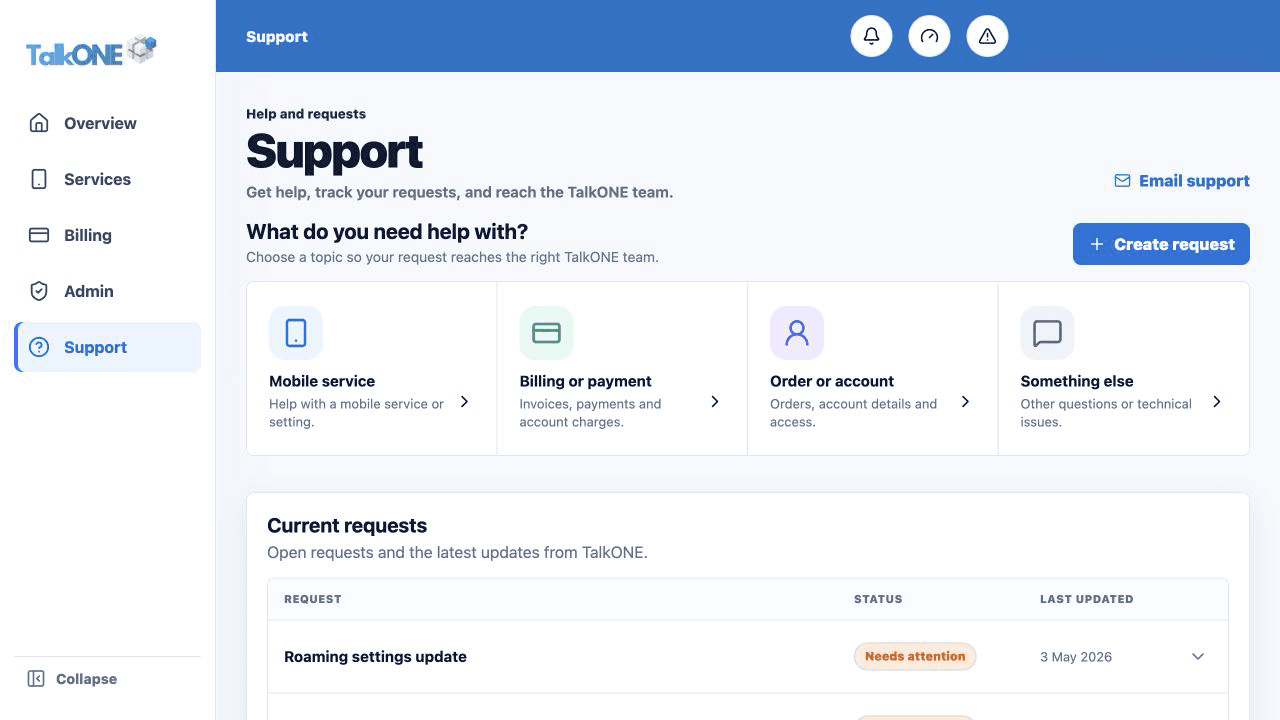
Use the highlighted Create request on the Support screen. Confirm the surrounding service or account details match before you continue.
Keep access current
Remove or update access when someone changes role or leaves the business.
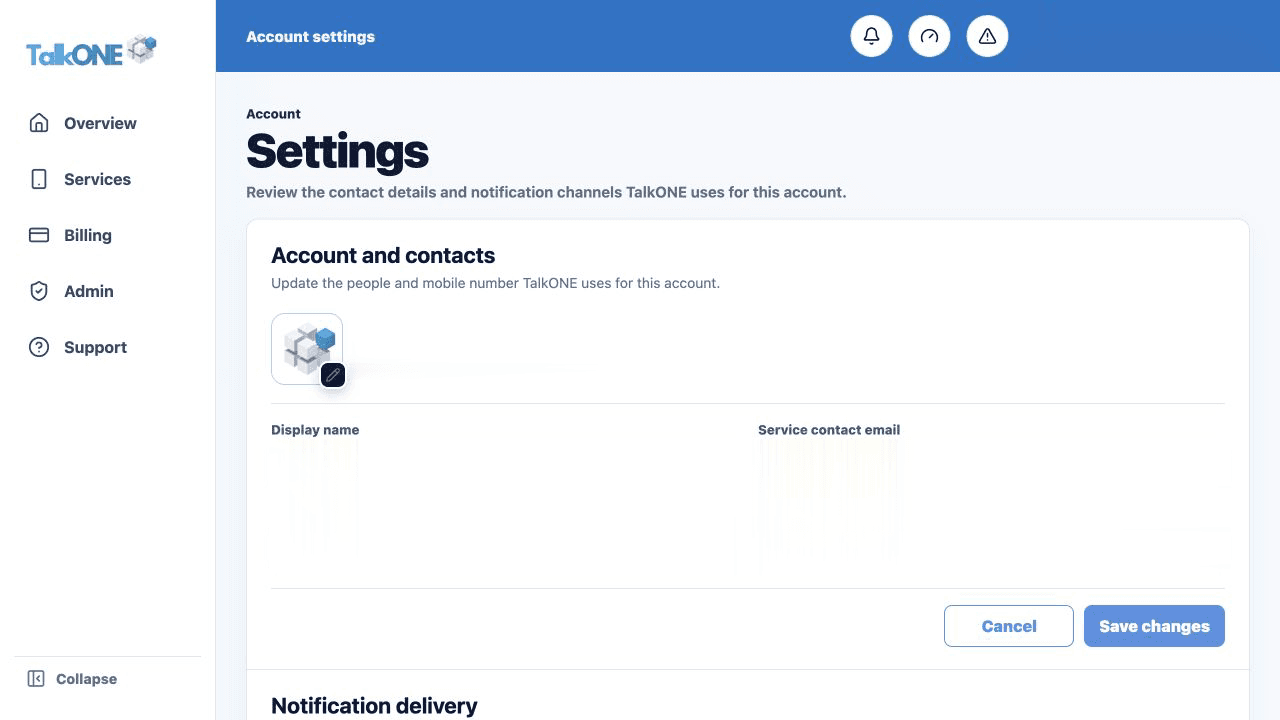
Use the highlighted account and contact fields on the Account settings screen. Confirm the surrounding service or account details match before you continue.
Check your work
Your sidebar only displays the pages available to your current role.